

Better Calc Pro unit and currency conversion, and the formula library
Convert and the Formula Library both live in the workbench sidebar. Unit conversion runs entirely on your Mac; currency conversion is the one feature of the app that touches the network, and this guide spells out its boundary.
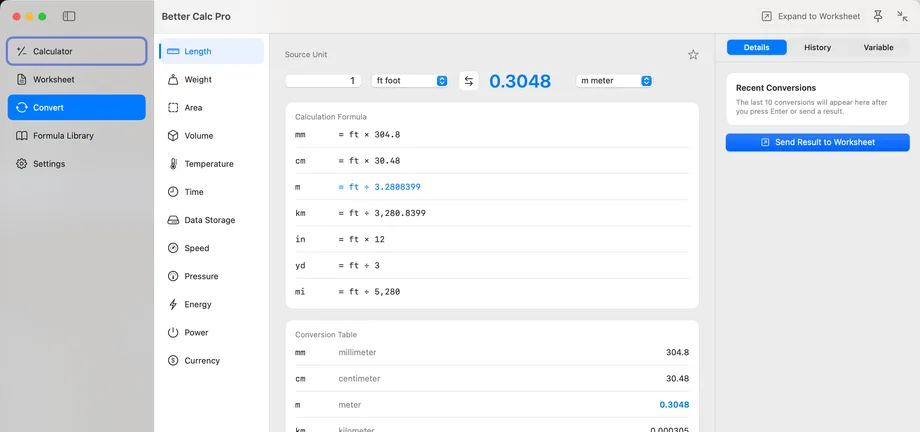
Unit conversion
On the Convert page, pick a category on the left (length, weight, area, volume, temperature, time, data, speed, pressure, energy, power, and more), enter a value, and choose the source and target units; the result updates live.
⇧S swaps source and target; the calculation formula and conversion table below list the equivalents in the other units of the category. ⌘↩ sends the result into the worksheet at full precision with a note recording what was converted. The inspector keeps the recent conversions.
Currency conversion
The Currency category uses European Central Bank reference rates fetched from api.frankfurter.dev. A request is made only when you open currency conversion or click Refresh in the inspector, and it carries only the base currency code, with no identifiers, device information, or user content.
Rates are cached on your Mac with a timestamp. Offline, the last successful rates are reused, and the interface states the source, the time of the last update, and whether the figure is live or cached; the first fetch needs a connection. Settings control the refresh frequency and the network timeout.
- Reference rates may lag live market prices; verify any figure before using it in an actual transaction, tax filing, or contract
- A network failure does not affect unit conversion or any other local calculation
Insert a formula
The Formula Library groups 23 built-in formulas under finance, tax, date and time, health, and programming. Search by name, tag, or description, favorite the ones you use, and find them again under Recent.
Double-click a formula card or click Insert into Current Calculation to place it in the current expression, then Tab between the parameter placeholders and fill in values. The inspector shows the formula expression, its parameters, and the usage count; ⇧⌘I inserts the most recently used formula again.
Write your own formula
Click New Formula to open the editor, give it a name, category, tags, and description, and write the expression with placeholders such as {{PV}} * (1 + {{r}}%)^{{n}}.
Custom formulas are stored in the app sandbox container on your Mac alongside the built-in ones; they can be favorited, edited, and deleted, and are never uploaded anywhere.
Better Calc Pro
Download from the Mac App Store.