Better Recorder Pro app icon

Local screen and camera recording for macOS

Better Recorder Pro

Record your screen, your camera, or both as picture-in-picture on your Mac: pick a screen or window, a camera, and a microphone, add system audio in screen modes, and get an MP4 (H.264 + AAC) at up to 1080p30. Recordings are saved in the folder you choose, and the app does not upload your recorded media.

Available now · Free download with a one-time Pro in-app purchase · macOS 15 or later · Apple silicon only · Version 1.0.1

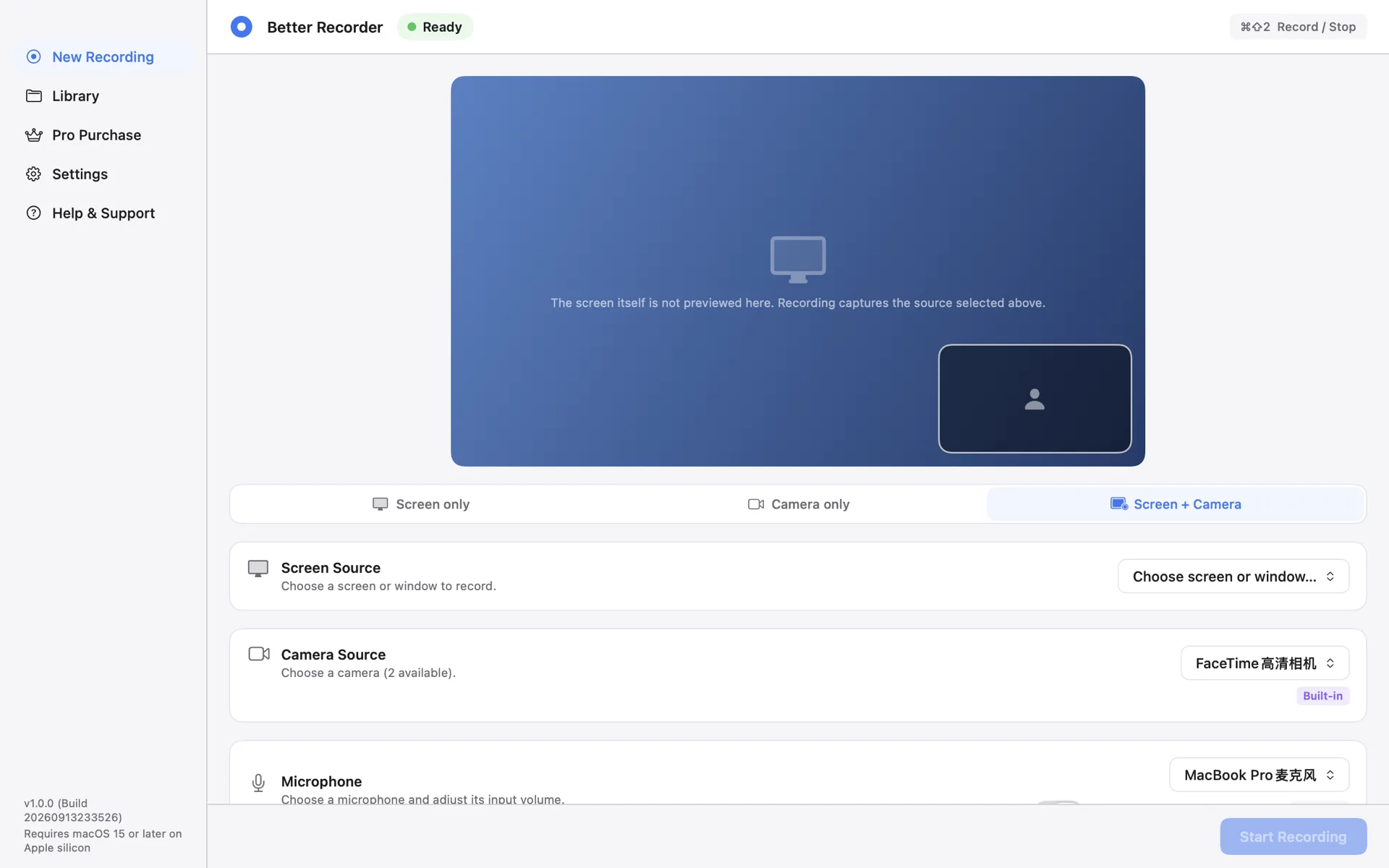
Better Recorder Pro New Recording page with the picture-in-picture preview on top, the Screen only / Camera only / Screen + Camera mode switch below it, and rows for choosing the screen source, camera source, and microphone
New Recording page · Better Recorder Pro

Recordings stay on your MacVideo, audio, and the recording index are saved in the output folder you choose. The app does not upload recorded media, and there is no cloud storage or collaboration. When you explicitly start Share to LAN, your Mac temporarily serves the finished recordings selected at start over local HTTP on the Wi‑Fi or Ethernet interface you pick — optional expiry and PIN, download-only in a same-network browser. The link stops on Stop, expiry, network change, or quit.

Permissions follow your sourcesScreen Recording is requested for a screen or window, Camera for a camera, and Microphone only when you record microphone audio. No Accessibility, Full Disk Access, or Automation.

The output spec is stated plainlyMP4 with H.264 video and AAC audio, up to 1080p30. A source smaller than 1080p keeps its own size and is not upscaled.

Free to use, Pro is a one-time purchaseFree covers all three modes with up to 120 seconds of recorded media per session, and paused time does not count. Pro is a one-time non-consumable purchase, not a subscription.

Capabilities

Three recording modes on one local pipeline: choose the sources, run preflight, press record, and the file lands in your own folder.

01

Three recording modes

Screen only, Camera only, or Screen + Camera picture-in-picture, switched on one page — choose the sources and start.

  • The screen source is a display or a single window; the camera can be a built-in Mac camera or a compatible USB camera
  • A compatible iPhone can appear as a camera through Apple's Continuity Camera when Apple's device, account, and connection requirements are met
  • Pick a microphone and adjust its input level; screen modes can include system audio when it is available
  • Place the picture-in-picture camera on a nine-position grid and watch the preview follow your settings
02

A visible recording path with stated limits

Run preflight before you start, keep a persistent REC indicator while recording, pause without spending Free time, and let saving finish on stop.

  • Preflight checks permissions and the environment; press ⌘⇧P to run it again whenever you are not recording
  • Start, pause, resume, and stop are four explicit states; a pause finalizes at a segment boundary instead of writing silence or repeated frames
  • ⌘⇧2 records and stops while Better Recorder is the frontmost app; this release does not provide global hotkeys
  • Low disk space is flagged early, media is written in segments, and after an interruption the app can attempt to recover completed segments on a best-effort basis
03

Library and local files

Finished recordings land in the Library: search, play, read the real specs, then rename, reveal in Finder, or delete — and start a temporary LAN Share from here.

  • Details list the date, duration, resolution, file size, status, format, and audio sources, and the resolution shown is the size actually written
  • Rename a recording or reveal it in Finder; deleting moves it to the Trash
  • Choose the default save location, and optionally open the file as soon as a recording finishes
  • Settings also cover the default mode, remembering the last sources, appearance, and language (English, 简体中文, 日本語, 한국어)
04

Temporarily share finished recordings on your LAN

From Library, start a temporary LAN Share for finished recordings. Choose a Wi‑Fi or Ethernet interface, an expiry, and an optional PIN. A same-network browser can download the selected snapshot one item at a time over local HTTP — download-only, no cloud storage. Sharing stops on Stop, expiry, network change, or app quit.

  • Start from Library; finished recordings only
  • Pick interface, expiry, and optional PIN
  • Same-LAN browser download; no BetterMac cloud relay

Privacy & permissions

Recorded content does not leave this Mac

Video, audio, and the recording index are saved in the output folder you choose, and preferences stay on your device. The app does not upload recorded media, and it does not read or index content beyond the recordings it saved. When you explicitly start Share to LAN, your Mac temporarily serves the finished recordings selected at start over local HTTP on the Wi‑Fi or Ethernet interface you pick (optional expiry and PIN; same-network browser download only). The link stops on Stop, expiry, network change, or quit; content does not pass through BetterMac servers. The whole app runs in the App Sandbox and reaches only the folders you authorize.

  • Permissions follow your sources: Screen Recording for a screen or window, Camera for a camera, and Microphone only when you record microphone audio
  • No Accessibility, Full Disk Access, or Automation permission is requested
  • Local diagnostics logging is off by default and kept for 7 days; every diagnostics attachment needs your consent before it is uploaded
  • Only feedback you send carries your email, title, description, and optional reproduction steps; the app never captures your screen or camera for support on its own
Read the privacy policy
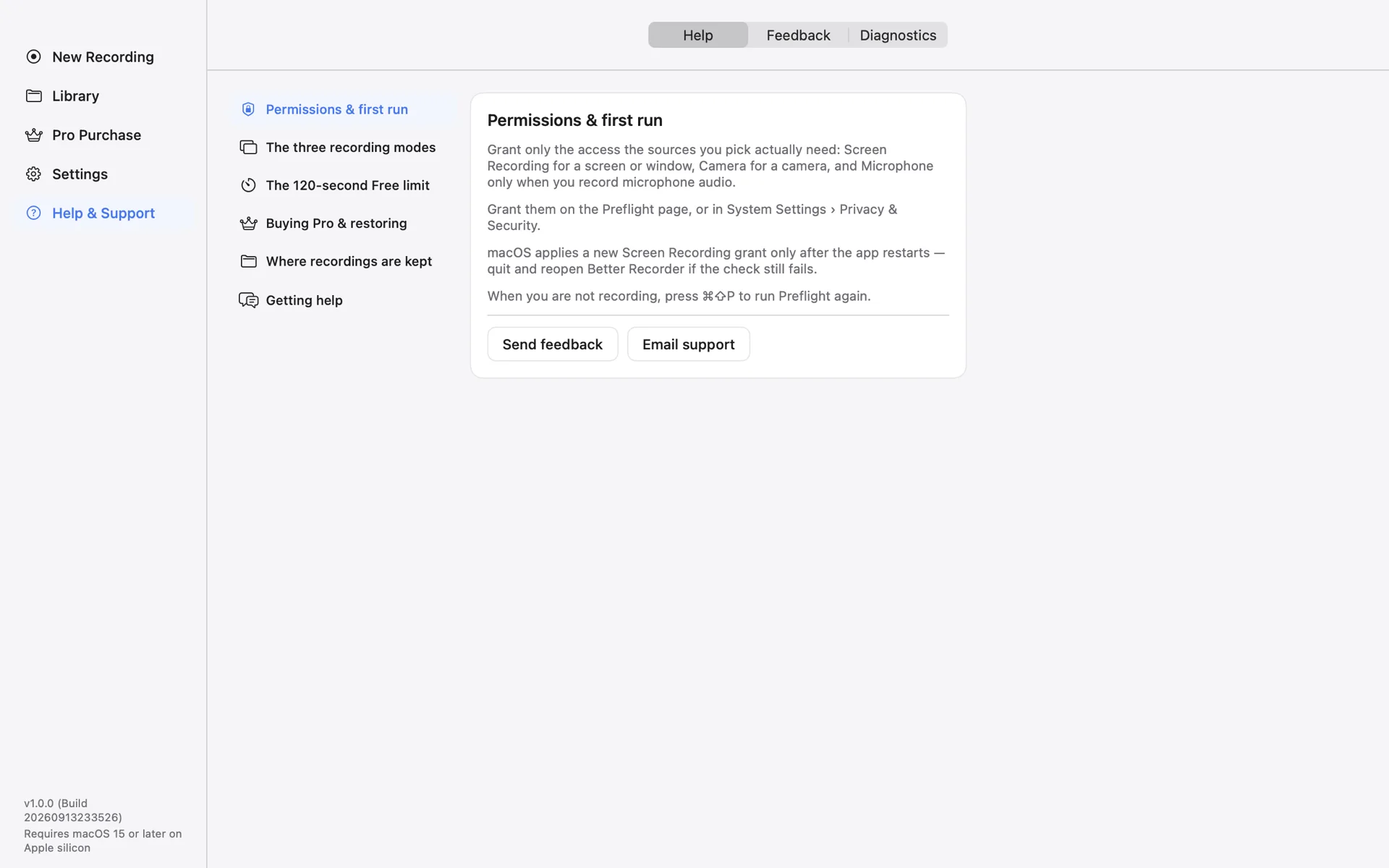
Better Recorder Pro Help & Support page listing topics such as permissions and first run, the three recording modes, the 120-second Free limit, buying and restoring Pro, and where recordings are kept, with Send feedback and Email support buttons

Pages

Pages and entry points

Five sidebar pages, plus the preflight check that runs before a recording.

  • New Recording · Choose the mode and sources, watch the picture-in-picture preview, and start recording
  • Library · Search, play, read the details, then rename, reveal in Finder, or delete; start Share to LAN here
  • Pro Purchase · The Free and Pro comparison, the real App Store price, purchase, and Restore Purchases
  • Settings · Default save location, open after recording, launch at login, appearance and language, default mode, and shortcuts
  • Help & Support · Local help in four languages, feedback submission, and a local diagnostics bundle that is off by default
  • Preflight · Checks Screen Recording, Camera, and Microphone permissions and the environment before a recording
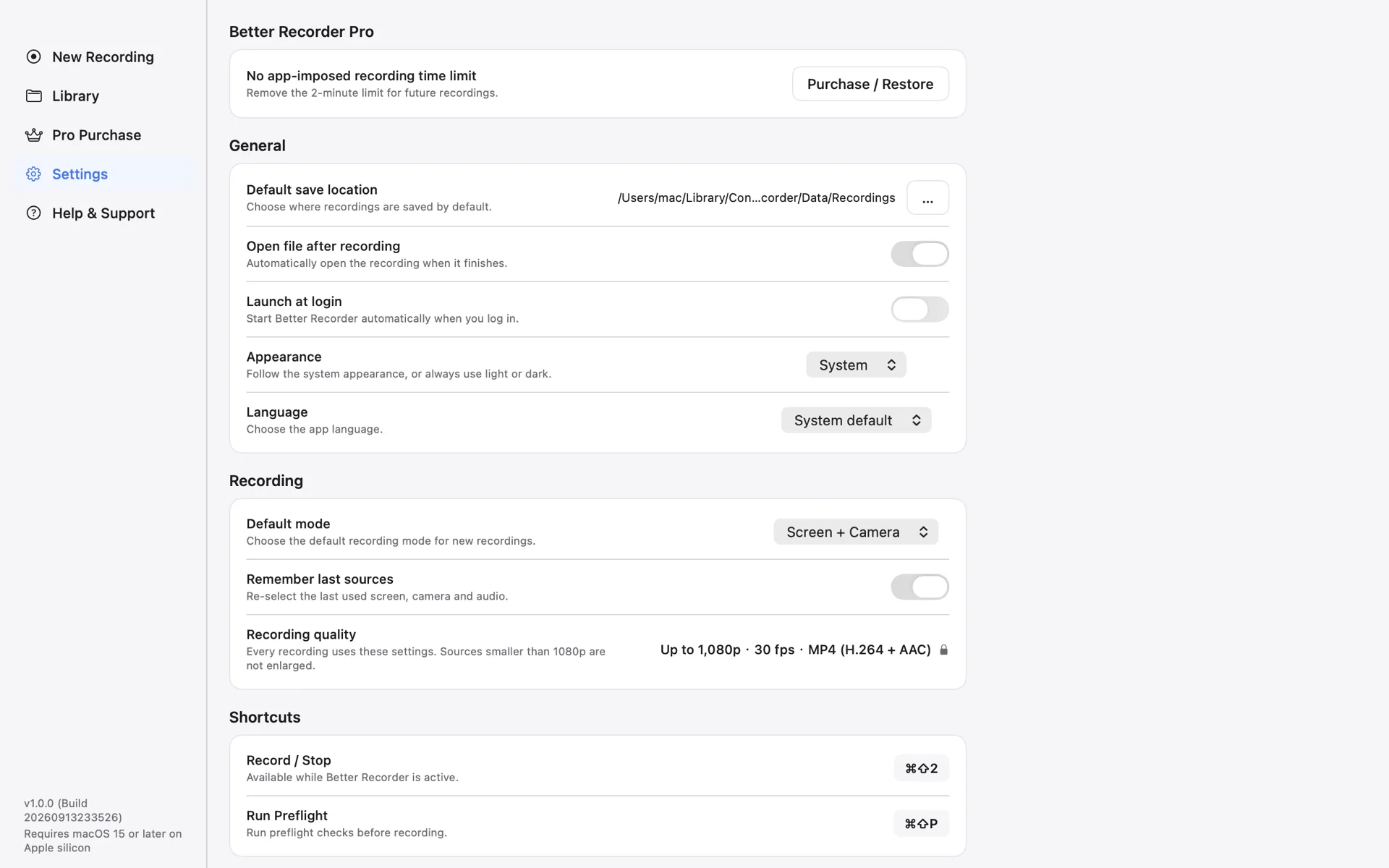
Better Recorder Pro Settings page showing the default save location, open after recording, launch at login, appearance and language, plus the default mode, remember last sources, and the recording quality fixed at up to 1080p30 MP4 (H.264 + AAC)

Pricing

Use all three modes free, remove the time limit with one purchase

The download is free; Pro is a one-time non-consumable in-app purchase, not a subscription. The item, price, tax, and refund terms are controlled by the Mac App Store purchase screen.

Free

Free

No account required

  • All three modes: Screen only, Camera only, and Screen + Camera
  • Up to 120 seconds of recorded media per session, with paused time excluded
  • At the limit, recording stops and saving finishes before the upgrade prompt
  • No watermark, and no limit on how many recordings you make

Pro currently removes the recording time limit only. Higher quality, more video sources, an iPhone companion, and advanced layout or export are not part of this purchase. Recording still depends on available storage and system state; the App Store purchase screen controls the item, price, tax, and refund terms.

Boundaries

What this release deliberately does not do

  • It does not record the iPhone screen: Continuity Camera provides the iPhone camera image, not the iPhone interface.
  • There is no built-in video editor and no live streaming; this release records and saves locally.
  • Intel Macs are not supported, and 1080p60, HEVC, and 4K are not opened yet — this release is fixed at up to 1080p30 MP4.
  • Recovery is best effort: completed segments can be recovered, while an unfinished segment or its ending may be lost, and combining segments is not guaranteed.

Frequently asked questions

Frequently asked questions

How do I record my screen and my camera at the same time on a Mac?

Choose the Screen + Camera mode on the New Recording page, then pick a screen or window and a camera. The camera is composited over the screen image as picture-in-picture, positioned on a nine-position grid, and the result is a single finished MP4 — no separate compositing step afterwards.

Can it record system audio as well as my voice?

Yes. In screen modes, system audio can be included when it is available, and the microphone is a separate source you can select and level independently. Camera-only recordings do not include system audio. The audio sources actually written are listed in the recording details.

How long can I record on the free tier?

Each session allows up to 120 seconds of recorded media, and paused time does not count. At the limit the app stops capturing and finishes saving before showing the upgrade prompt, so what you already recorded is kept. There is no limit on the number of recordings and no watermark.

Is Pro a subscription, and does it follow me to a new Mac?

It is not a subscription. Pro is a one-time non-consumable in-app purchase managed by your Apple Account and StoreKit, so compatible Macs signed in with the same Apple Account can use it, and Restore Purchases on the Pro page brings it back after a reinstall or a new Mac. The price is the one shown on the Mac App Store purchase screen.

Where are recordings saved, and in what format?

In the default save location you choose in Settings, as MP4 files with H.264 video and AAC audio, up to 1080p30. A source smaller than 1080p keeps its own size rather than being upscaled, and the resolution shown in the Library is the size actually written.

Which system permissions are needed, and why does it still fail after I grant them?

Only the ones your sources need: Screen Recording for a screen or window, Camera for a camera, and Microphone only for microphone audio. No Accessibility, Full Disk Access, or Automation. macOS applies a new Screen Recording grant only after the app restarts, so if preflight still fails after you approve it, quit and reopen the app.

Can I use an iPhone as the camera, or record the iPhone screen?

When Apple's device, account, and connection requirements are met, a compatible iPhone can appear in the device list as a camera through Continuity Camera; availability depends on macOS and your devices. That uses the iPhone camera image, not iPhone screen recording, which is outside this release.

Are Intel Macs supported? What about 1080p60, 4K, or HEVC?

Intel Macs are not supported: an Apple silicon Mac running macOS 15 or later is required. This release is fixed at up to 1080p30 MP4 (H.264 + AAC); 1080p60, HEVC, and 4K are not opened yet.

My Mac crashed or lost power mid-recording. Is the file gone?

Media is written in segments with an index file alongside it, and the next launch scans for and tries to recover the completed segments. Recovery is best effort: an unfinished segment or its ending may be lost and combining segments can fail, so we do not promise full recovery.

How do I get a recording onto another device on the same network?

In Library, select finished recordings and start LAN Share. Choose a Wi‑Fi or Ethernet interface, an expiry, and an optional PIN. On the same LAN, open the link in a browser to download items one at a time. The channel is local HTTP from your Mac — no BetterMac cloud. The link stops working when you stop sharing, when it expires, if the network changes, or if you quit the app.

Can I download Better Recorder Pro now?

Yes. Better Recorder Pro is now available on the Mac App Store; use the link on this page to download it.


Need help?

Open a request in the support center, or email us directly. The app's own Help & Support page carries local help in four languages and the feedback form.