

Better Calc Pro quick start: calculator, keypads, ⌘K, and Quick Calculate
Better Calc Pro needs no account and nothing to configure; it opens on the Calculator page. This guide walks through the calculator, the three keypads, the ⌘K command palette, and Quick Calculate from the menu bar.
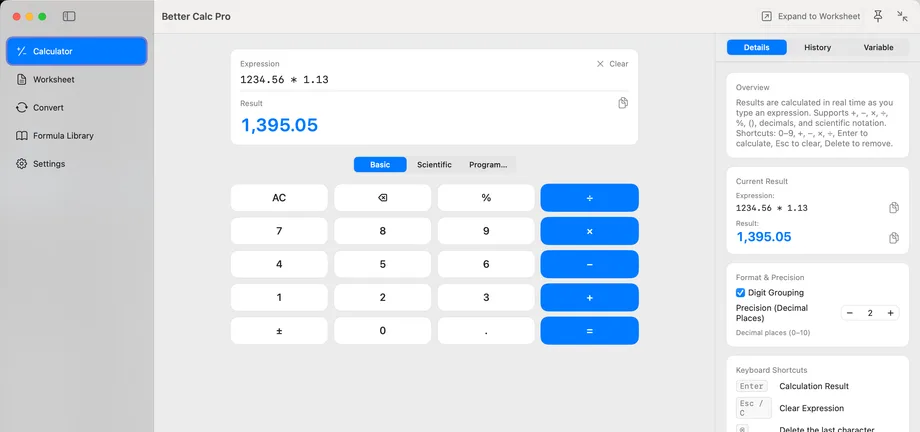
Start on the Calculator page
The app opens on Calculator. Type an expression such as 12 * 34 straight from the physical keyboard and press Return; the result area previews as you type.
The basic keypad covers arithmetic, parentheses, and percentages, with ANS for the previous result; after = you can keep operating on the result, and ↑ ↓ page through history. The inspector on the right has Details, History, and Variables tabs, opens from any page with ⌘\, and a single click on a history entry brings that calculation back.
Switch between the three keypads
⌘1 basic, ⌘2 scientific, ⌘3 programmer, or click the segmented control under the expression. All three share one full-precision Decimal engine.
The scientific keypad offers trigonometry and inverses, log / ln / log2 / log10, powers and roots, factorial, combinations and permutations, constants, and DEG / RAD / GRAD. The programmer keypad shows BIN / OCT / DEC / HEX together, with 8/16/32/64-bit widths, signed and unsigned, bitwise operations, shifts and rotates; on overflow both the truncated and the original result are shown.
The ⌘K command palette
Press ⌘K, type the name of a page, action, or mode, and press Return on the fuzzy match. Frequent actions also have their own shortcuts:
- ⌘N new worksheet row, ⇧⌘V new variable, ⌘Y open history
- ⌘E expand to the Worksheet, ⌘T open Convert, ⇧⌘I insert the most recent formula
- Switch to basic, scientific, or programmer mode, equivalent to ⌘1 / ⌘2 / ⌘3
Quick Calculate from the menu bar
Click the menu bar icon and choose Quick Calculate, or press the global hotkey ⌥⌘K from any app (re-recordable in Settings).
Type an expression and press Return: the result is copied to the clipboard and the panel closes. It uses the same engine and the same history, so the calculation shows up in the workbench history afterwards. The global hotkey is registered through a system API that needs no Accessibility permission and never observes keystrokes outside the app's windows.
Next steps
When you want to keep the working, press ⌘E to expand the current expression into the Worksheet; line references, variables, and Chinese input are covered in the Worksheet and variables guide, and unit and currency conversion plus the formula library in the Convert and formulas guide.
⌥⌘U switches to the compact calculator and ⌥⌘P pins it above other apps; when it loses focus while pinned it turns translucent and lets clicks pass through, so it never hides what is underneath, and clicking its title bar or pressing ⌥⌘K brings focus back; while pinned it reads the arithmetic part of the clipboard, and unpinning stops that immediately.
Better Calc Pro
Download from the Mac App Store.