

Better Share quick start: discover, bind, send, and receive
Better Share works inside one LAN with no account and no server. The first run takes three steps: discover, bind, send. The receiving side reviews every item before it is saved.
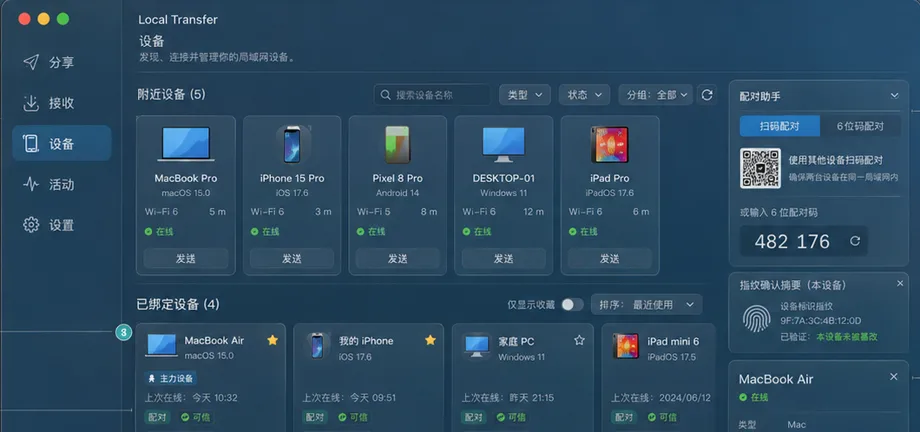
Discover nearby devices
With Better Share open on both Macs and both on the same network, the Nearby devices list on the Devices page fills in over Bonjour; Rescan refreshes it immediately.
If the list stays empty, check that both devices are on the same LAN and that Better Share is allowed to use the local network. Bonjour publishes only the display name, the first 8 characters of a random device id, capabilities, and the OS type.
Bind a trusted device
Open the pairing assistant on the Devices page and choose QR pairing: one Mac shows a QR code, the other scans it with its camera.
Both sides then show the same 6-digit verification code. Confirm that they match, and Better Share derives a pairing key and stores it in the macOS Keychain. From then on, direct transfers between the two devices are TLS-PSK encrypted and mutually authenticated.
- Binding happens once; the other Mac appears under Bound devices with its online status
- Device details let you favorite, rename, or remove trust (which also deletes the pairing key)
- A blocked device is refused before the handshake
Send files
On the Overview page, drop files or folders onto the selection card or click to choose, then click the target device under Quick send.
Transfers run in chunks and resume after an interruption; every file is SHA-256 verified before it is written. When the other side is an iPhone, iPad, or Mac, you can also switch from the send panel to system AirDrop.
Review and receive
Transfers from unbound devices or guests wait for confirmation by default; bound devices can be accepted automatically according to your policy.
The review sheet lists each file with its name, size, and an extension-based risk hint, plus the destination and free space. Choose a conflict policy (rename / replace / keep both / ask), tick Remember this device, or accept only some of the files.
A file shows as completed only after it is saved. Files from the network carry the macOS quarantine attribute.
Better Share
Download from the Mac App Store.