

macOS Screen Recording permission: what to do when it still fails - Better Recorder Pro
macOS separates privacy permissions by purpose, so screen, camera, and microphone are three different things. This guide covers when each one is requested, where to grant it, and the classic case where the permission is on and it still does not work.
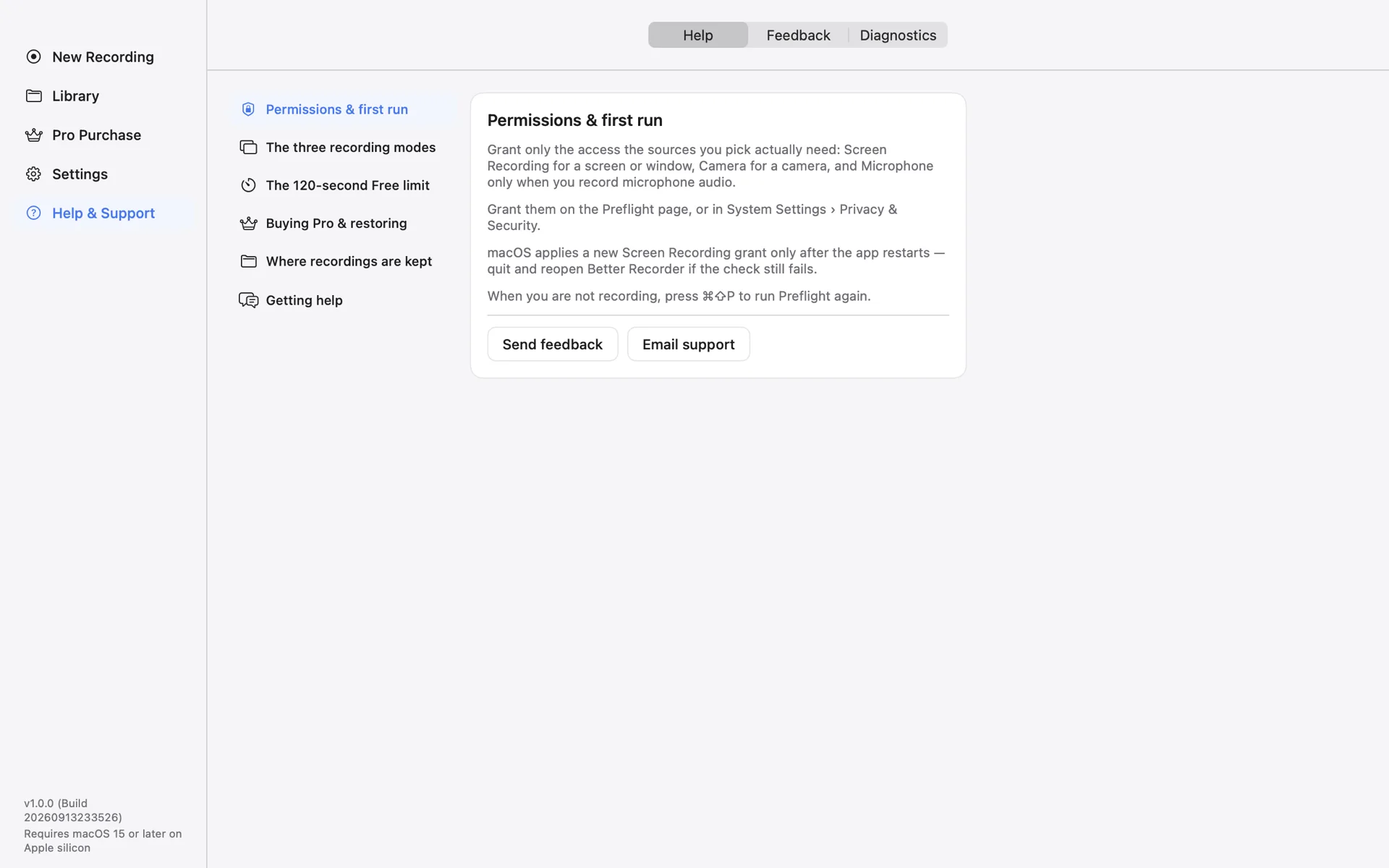
Requested per source, and no more
Better Recorder Pro asks only for what this recording needs: Screen Recording for a display or window, Camera for a camera, and Microphone only when you record microphone audio. No microphone selected means no microphone prompt.
The app does not request Accessibility, Full Disk Access, or Automation, and it ships no virtual audio driver or system extension. It runs in the App Sandbox and writes only into the output folder you authorized.
Granting them in System Settings
All three live under System Settings › Privacy & Security: Screen & System Audio Recording, Camera, and Microphone. The app raises the system prompt the first time a source needs it, and you can toggle each one there at any time.
The Preflight page lists the permissions this recording needs and their current state; press ⌘⇧P to run it again whenever you are not recording.
Granted but still unavailable: restart the app
This is expected macOS behaviour: a newly granted Screen Recording permission takes effect only after the app restarts. If you just approved it and preflight still says it is unavailable, quit and reopen Better Recorder — there is no need to restart the Mac.
If Screen Recording is revoked in System Settings while a recording is running, the recording stops because its screen source is gone; after granting it again, reopen the app the same way.
Consent and local rules
Permissions only settle what is technically possible. Before recording a meeting, a call, or anything with other people in it, get consent from everyone involved and follow the recording rules that apply where you are.
The app never captures your screen or camera for support on its own. Local diagnostics logging is off by default, and every diagnostics attachment needs your consent before it is uploaded.
Better Recorder Pro
Download from the Mac App Store.