
Record your screen and yourself on a Mac: Better Recorder Pro picture-in-picture
Tutorials and product demos usually need the screen and the presenter at the same time. Screen + Camera composites both while recording, so there is no second timeline to align afterwards.
What Screen + Camera does
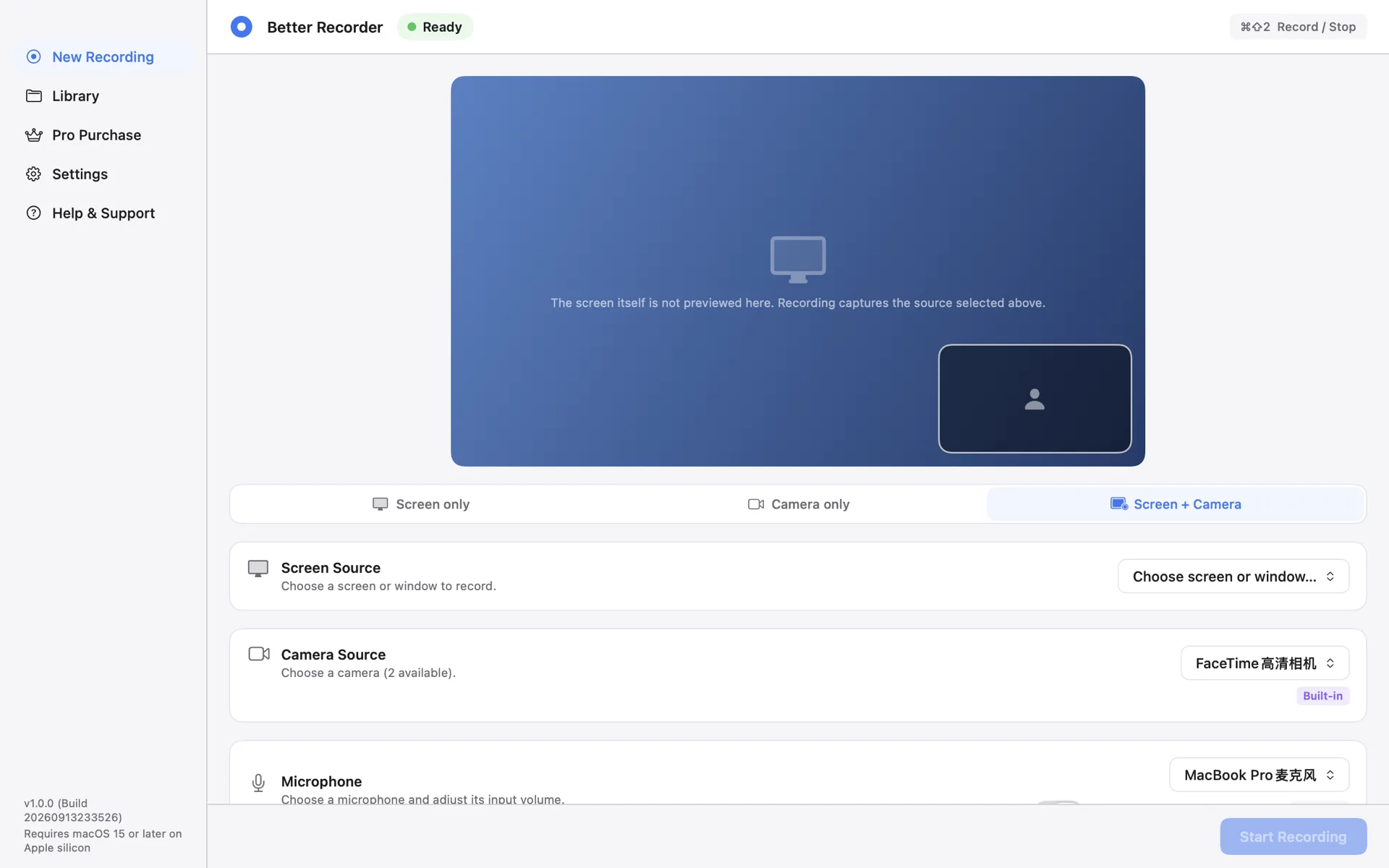
In Screen + Camera the screen or window is the main image and the camera sits over it as picture-in-picture. Compositing happens during the recording, so stopping leaves you with one finished MP4 rather than two files to align.
The preview shows the composited result under your current settings, so you can confirm that the camera is not covering anything important before you start.
Placing the camera image
The camera position comes from a nine-position grid: put it in a corner or along an edge, away from the part of the screen your demo uses. This release places the camera on that grid and does not offer free dragging.
If the camera still collides with your content, move it to another corner, or record the talking head separately in Camera-only mode and combine the two in an editor — the app itself contains no editor.
Which cameras work
Built-in Mac cameras and compatible USB cameras work directly. When Apple's device, account, and connection requirements are met, a compatible iPhone appears in the list through Continuity Camera; availability depends on macOS and your devices.
One thing worth stating plainly: Continuity Camera provides the iPhone camera image, not the iPhone screen. Recording the iPhone interface is outside this release.
Output spec and quality boundaries
The composited image is written as MP4 with H.264 video and AAC audio, up to 1080p30. A source smaller than 1080p keeps its own size instead of being upscaled, and the Library shows the resolution actually written.
The recording spec is fixed in this release: 1080p60, HEVC, and 4K are not opened yet. On the audio side, screen modes can record system audio and a microphone together.
Better Recorder Pro
Download from the Mac App Store.