

Explain a Mac process with your own AI service
When an unfamiliar process is using resources, AI can explain it from its path, signature, resource use, and network activity. This feature is optional; every monitoring feature works without it.
Set up an AI service
Open Settings › Permissions & Integrations › AI Service › Manage and add an AI API Configuration: choose Anthropic or OpenAI-compatible as the API type, then enter a name, an HTTPS endpoint, and a model. The API key is stored in the macOS Keychain. You can save several configurations and set one as current.
What a summary sends
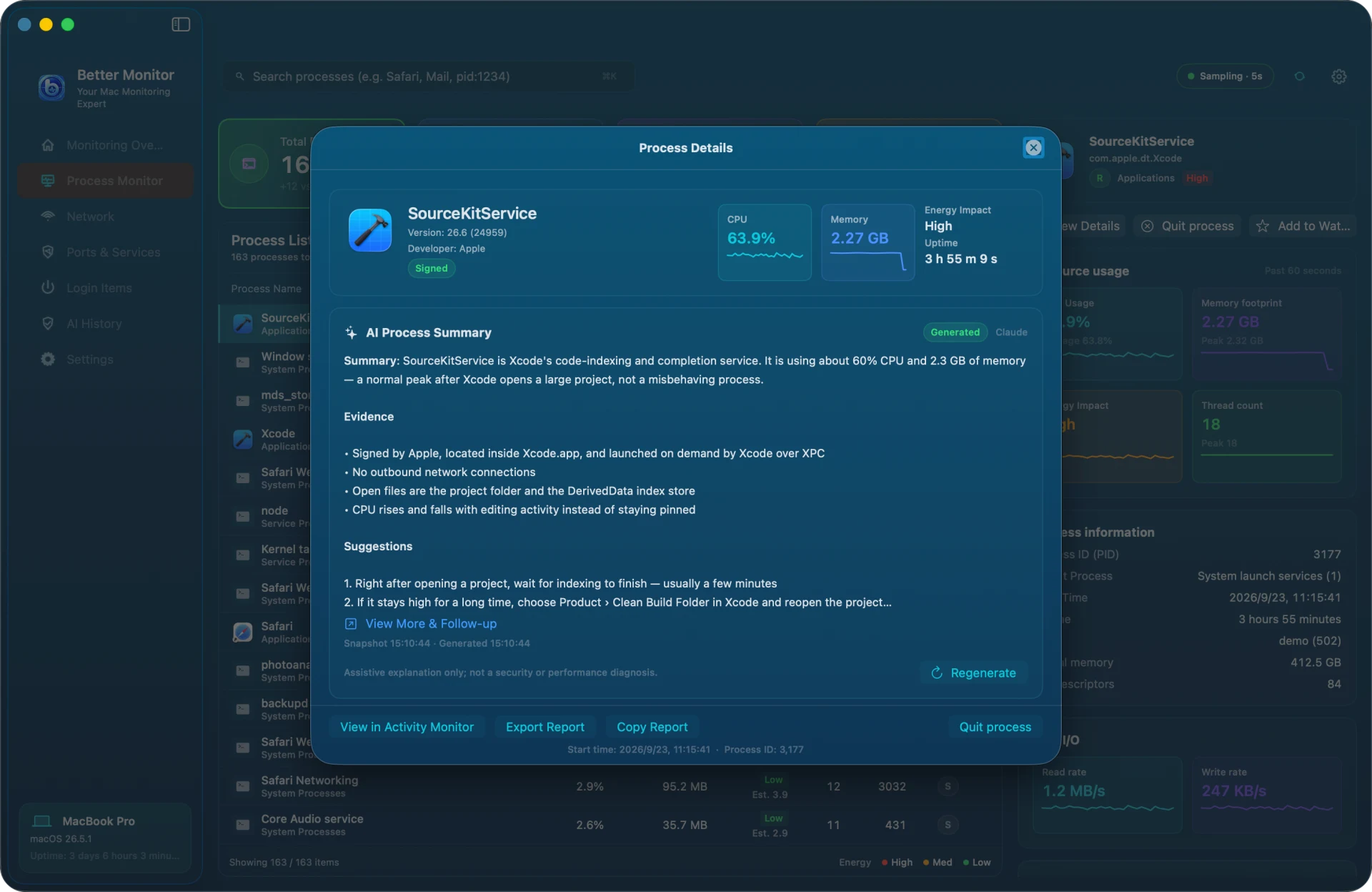
Generate from the AI Process Summary card in Process Details. The first time, Better Monitor asks Send process details to the AI service? and lists what will be sent; nothing leaves your Mac until you choose Agree and Generate.
- Sent: the process's full path, PID, resource and network observations, and the paths of its open files
- Never sent: file contents, other processes, or your API key
Follow-ups and AI History
Once the summary appears, View More & Follow-up lets you keep asking about the process, and Regenerate produces a new summary. Every conversation is saved on this Mac in AI History, grouped by process, for 30 days and up to 200 conversations, with search and one-click clearing. Clearing removes only local records; data already sent is governed by the provider's retention and training policies.
Boundaries
AI output is an aid to understanding, not a security or performance diagnosis, and it never quits processes or changes your system. Make the final call with the signature, path, and resource data in Process Details.