

Review your Mac's login items, LaunchAgents, and LaunchDaemons
Slower logins, or background programs you do not recognize? The Login Items page collects everything that starts automatically.
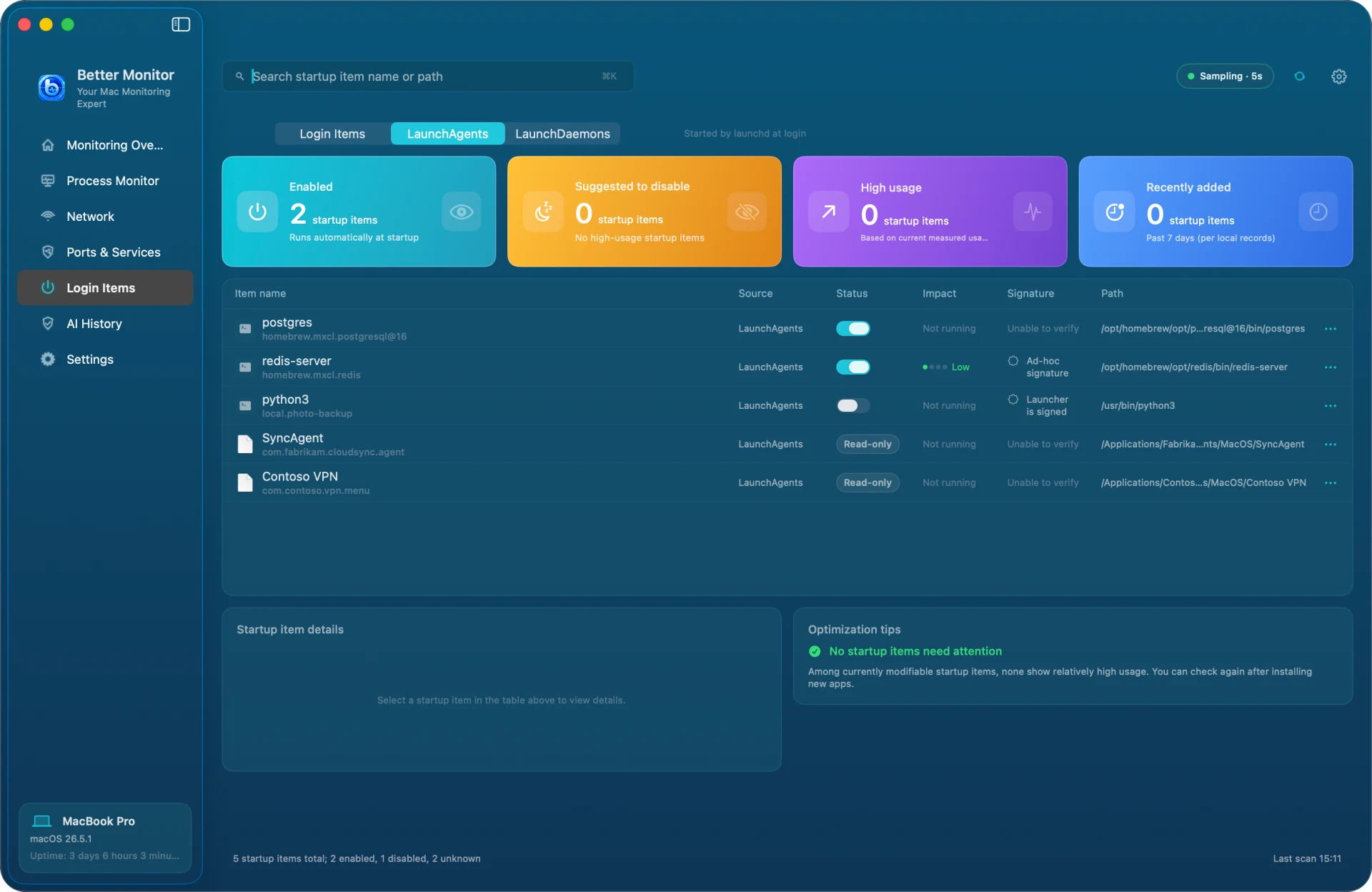
Three segments
Each segment is one way of starting automatically:
- Login Items: apps under Open at Login in System Settings › General › Login Items & Extensions. macOS manages them, so they are read-only here, with a shortcut to System Settings
- LaunchAgents: started by launchd at login. Items in your own ~/Library/LaunchAgents can be enabled or disabled right here; system-wide items in /Library/LaunchAgents are read-only
- LaunchDaemons: run with system privileges from boot. Read-only
The cards and what impact means
The four cards are Enabled, Suggested to disable, High usage, and Recently added (counted from when this Mac first saw the item). Impact is the current resource usage of the item's process, not boot time, and disabling an item does not guarantee a saving. When one program runs as several processes, Better Monitor cannot attribute them and shows Not running.
Signatures and script launchers
The signature column shows states such as Signature valid, Ad-hoc signature, and Unable to verify. Items started through an interpreter such as python, node, or bash are marked Launcher is signed: the signature belongs to the interpreter, and what actually runs is a script, so its arguments are worth a look.
Before you disable something
Find out which software an item belongs to and what it does. Disabling a database, sync, or VPN service can break the apps that depend on it. Turn off system-wide items from the owning software's own settings.