

Better Monitor troubleshooting
Most "missing" information comes from macOS permission and visibility limits. The steps below usually resolve it.
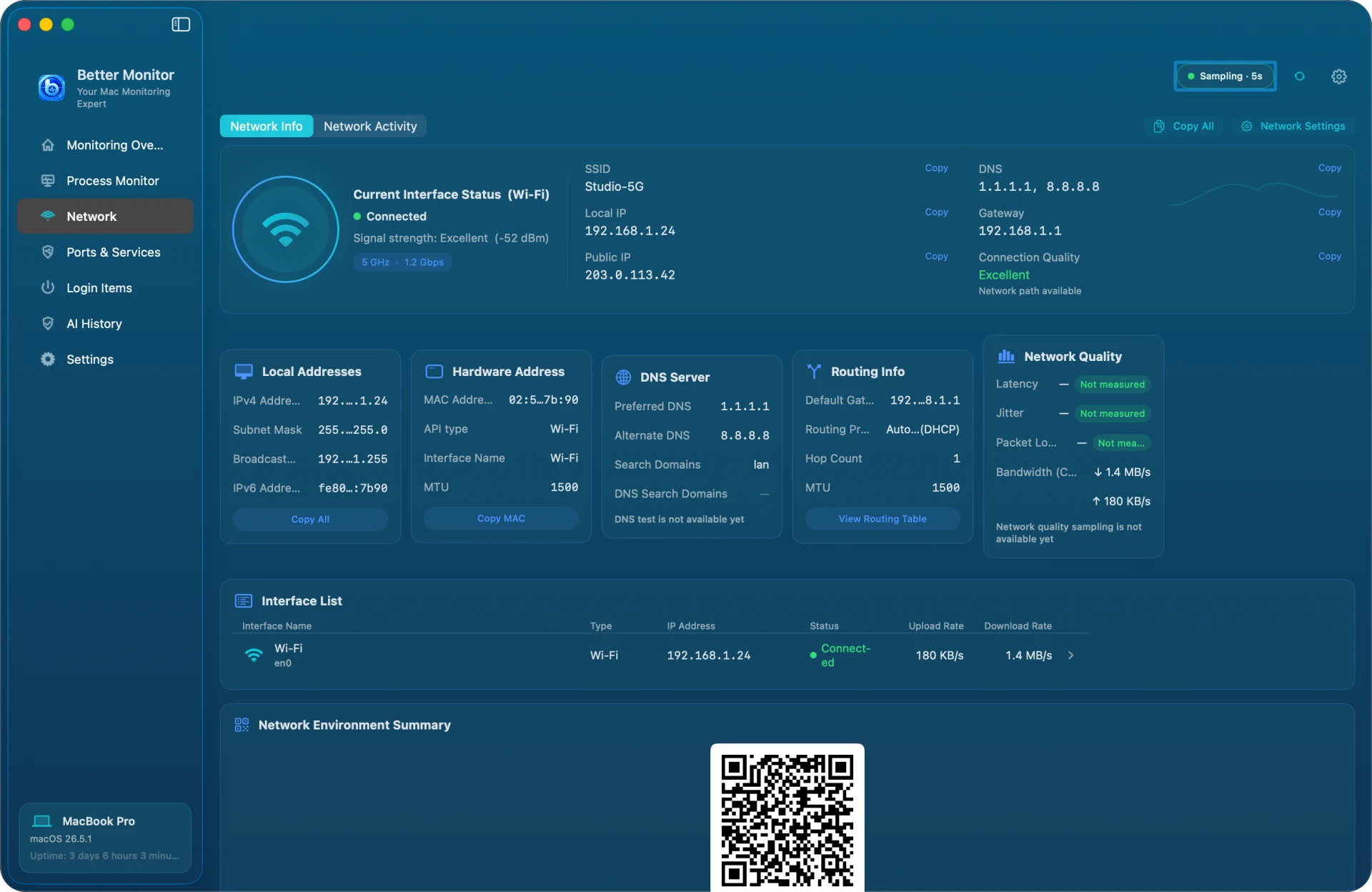
The Wi-Fi name does not appear
macOS requires Location Services to read the Wi-Fi name. Open System Settings › Privacy & Security › Location Services, allow Better Monitor, and refresh the Network page. Better Monitor uses this permission only to read the Wi-Fi name and never reads or records your location.
The Login Items segment is empty
This segment reads the list through System Events. Open System Settings › Privacy & Security › Automation, allow Better Monitor to control System Events, then refresh the Login Items page. LaunchAgents and LaunchDaemons do not need this permission.
A process will not quit, or a value shows "—"
Regular apps cannot quit system processes, other users' processes, or processes protected by System Integrity Protection, and Better Monitor re-checks the process identity before sending the signal, refusing if the PID was reused. For processes owned by other users or root, macOS may not expose paths or open files; "—" means the value cannot be read right now, not zero.
Charts are empty
Check whether monitoring is paused in the top bar (⌘. continues it) and whether Background live sampling is on in Settings › General. With the window hidden only lightweight system metrics are sampled; the process and network inventories refresh when the window is visible again.
Local data and uninstalling
Monitoring history and AI conversations live in ~/Library/Application Support/net.better.mac.monitor/, preferences in ~/Library/Preferences/net.better.mac.monitor.plist, and AI API keys in the net.better.mac.monitor.ai Keychain item. Clear local data from Settings › Data & Privacy. Uninstalling with Homebrew's --zap also removes local data but not the Keychain API key, so delete your AI configuration in the app first.
brew uninstall --zap --cask better-monitor