

Open 7z files on Mac with Better UnArchiver
When you want a graphical workflow, Better UnArchiver can open 7z files without Terminal. Encryption, split volumes, and the compression method still affect macOS and third-party compatibility.
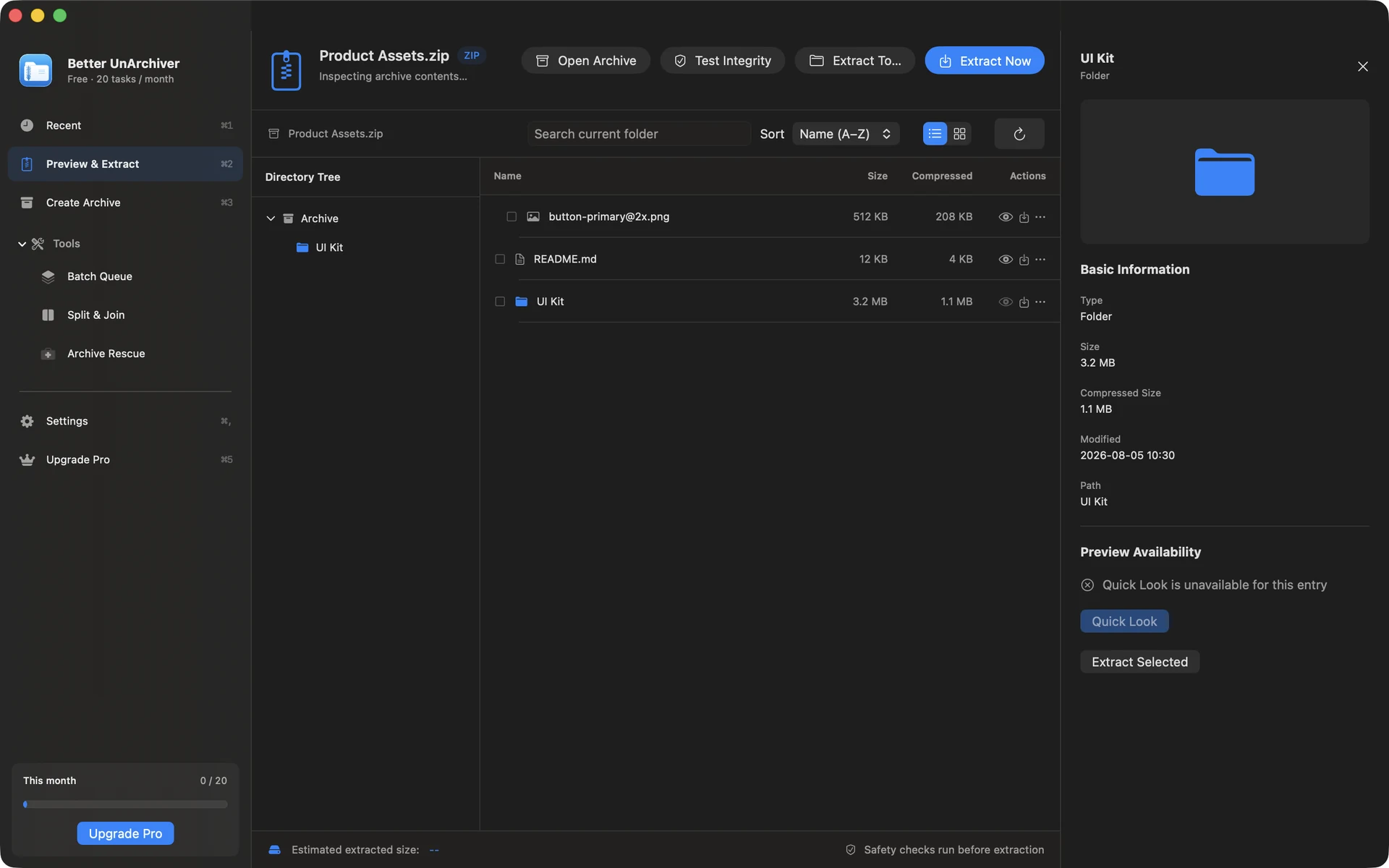
Open and preview without Terminal
Choose the 7z file, browse its tree, search, or use Quick Look for supported entries, then extract everything or selected files. If your current macOS release can already handle a simple archive, the native path is the shortest option.
Handle encrypted and split 7z archives
Enter the password you already have for an encrypted 7z. Keep a complete split archive in one folder and start with its first volume; another app cannot bypass a missing part or incorrect password.
- Confirm that volume numbers are continuous and filenames are unchanged
- Run an integrity test before full or selective extraction
- When creating 7z, AES-256 and split-volume output are available
Understand macOS compatibility
Archive Utility compatibility can vary with the macOS version, compression method, encryption, and split archive layout, so the extension alone is not proof of support. Better UnArchiver also cannot guarantee every third-party 7z variant.
Available on the Mac App Store
The free tier includes 20 tasks per month up to 100 MB each. A one-time Mac App Store purchase removes the task-count and size limits shown for the current version and unlocks Pro. Better UnArchiver is available on the Mac App Store, where Apple handles purchases and restoration. Website checkout and license services remain disabled, and the recovery portal stays closed. macOS 14 or later · Apple silicon and Intel.